FP Sign 2.0 – Interactive Guide
Select a topic on the left or start with the first step. Click an image to enlarge it. In the enlarged view, the areas explained are displayed as hotspots. Hover over a hotspot to read its description.
1. The dashboard: Your central starting point
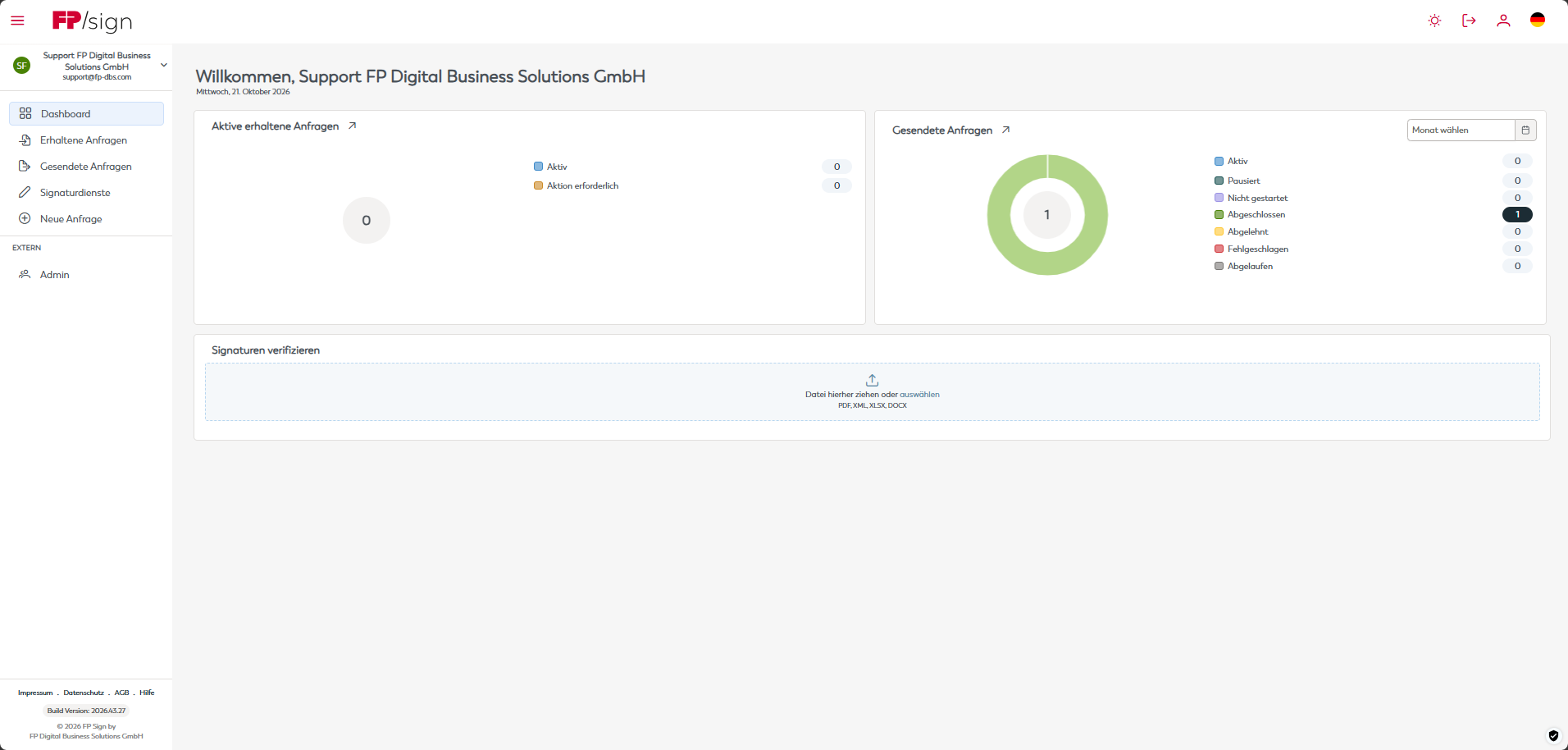
After logging in, you are taken directly to your dashboard. This home page provides a central overview from which you can manage and monitor the most important actions. Keep track of active sent or received requests, verify signed documents and start a new signature request via the main menu.
Click the image and hover over the highlighted areas in the enlarged view.
2. Received requests: Documents for you to sign
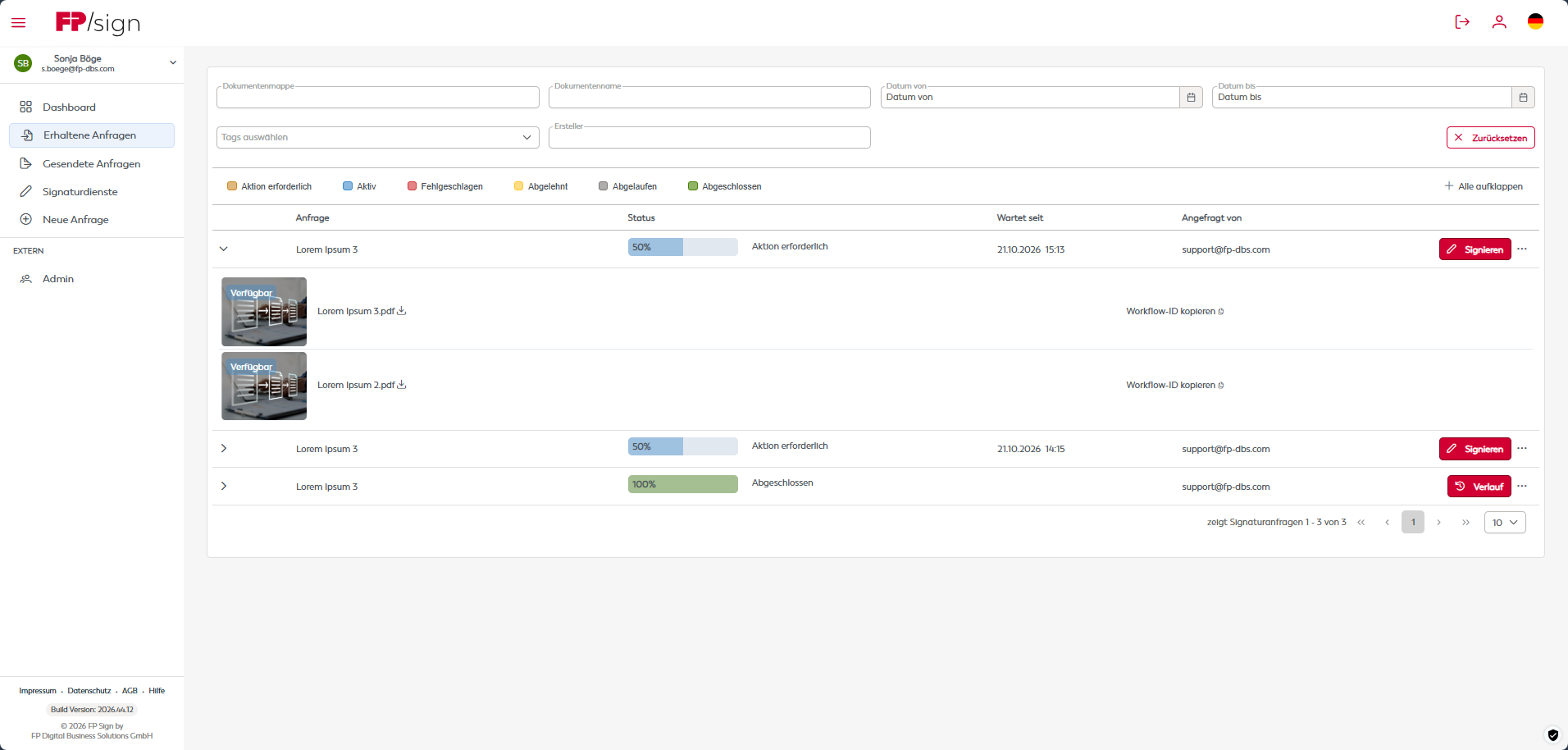
This is your inbox for signatures. It contains all documents assigned to you by other people, internally or externally, for viewing, confirmation or digital signature. Search and filter by document folder name, document name, date range or tags. The coloured status indicators serve as both a key and a filter. The table shows the request, “Waiting since”, status, “Requested by” and available actions.
Click the image and hover over the highlighted areas in the enlarged view.
3. Sent requests: Keep track of your sent documents
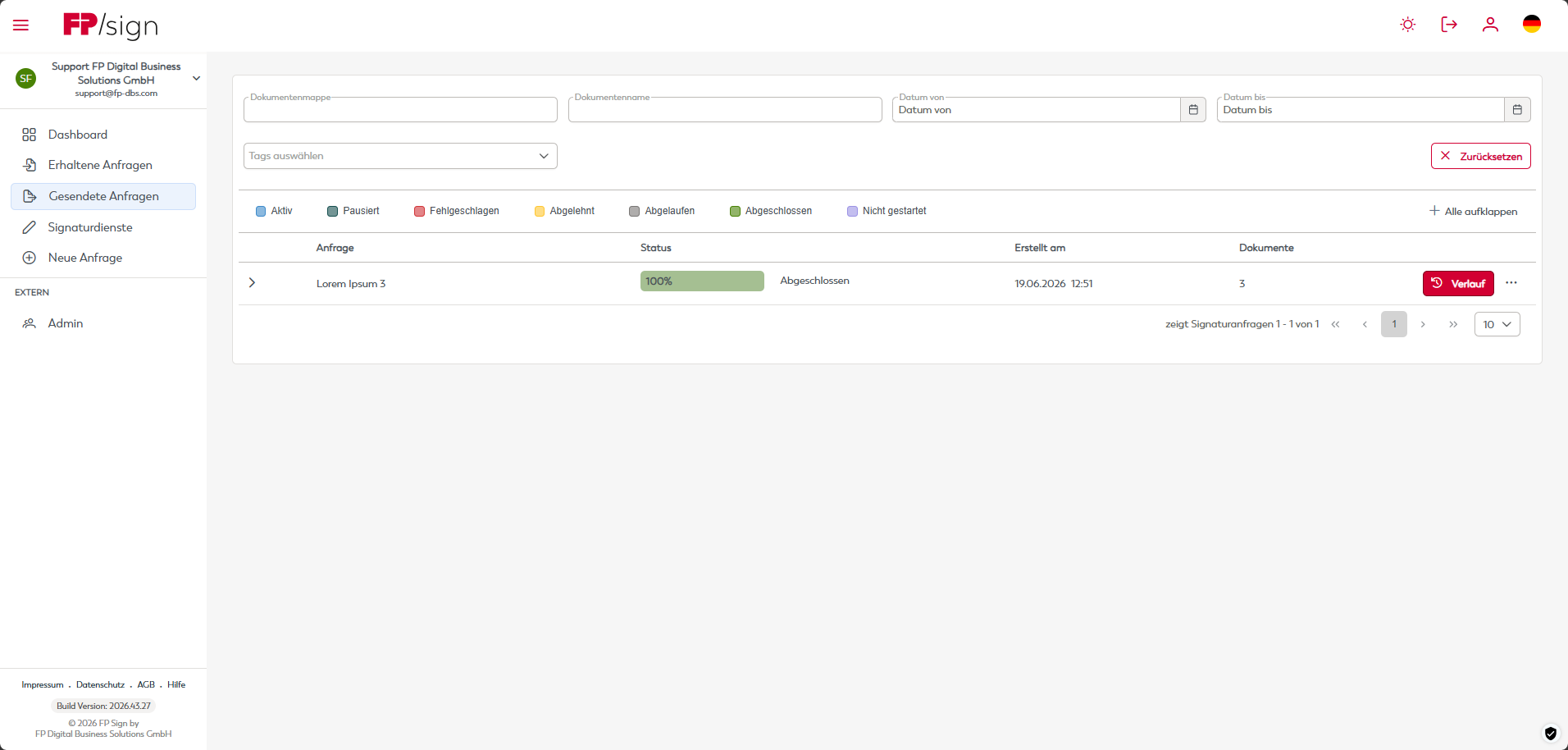
This is your outbox and archive for outgoing workflows. It contains a complete list of all signature requests you have initiated, including those started via integrations. You can monitor progress, send reminders to overdue signatories, view the workflow history or cancel requests.
Click the image and hover over the highlighted areas in the enlarged view.
3.1 Open a request’s history
You can expand the history of an ongoing request to see the precise status of each document it contains. To do so, open the history in the sent requests overview.
Click the image and hover over the highlighted areas in the enlarged view.

3.2 Check progress and processing status
The percentage and coloured bar indicate the current progress, for example 33%. The history lets you see exactly which recipient is currently processing the document.
Click the image and hover over the highlighted areas in the enlarged view.
3.3 Download completed documents and logs
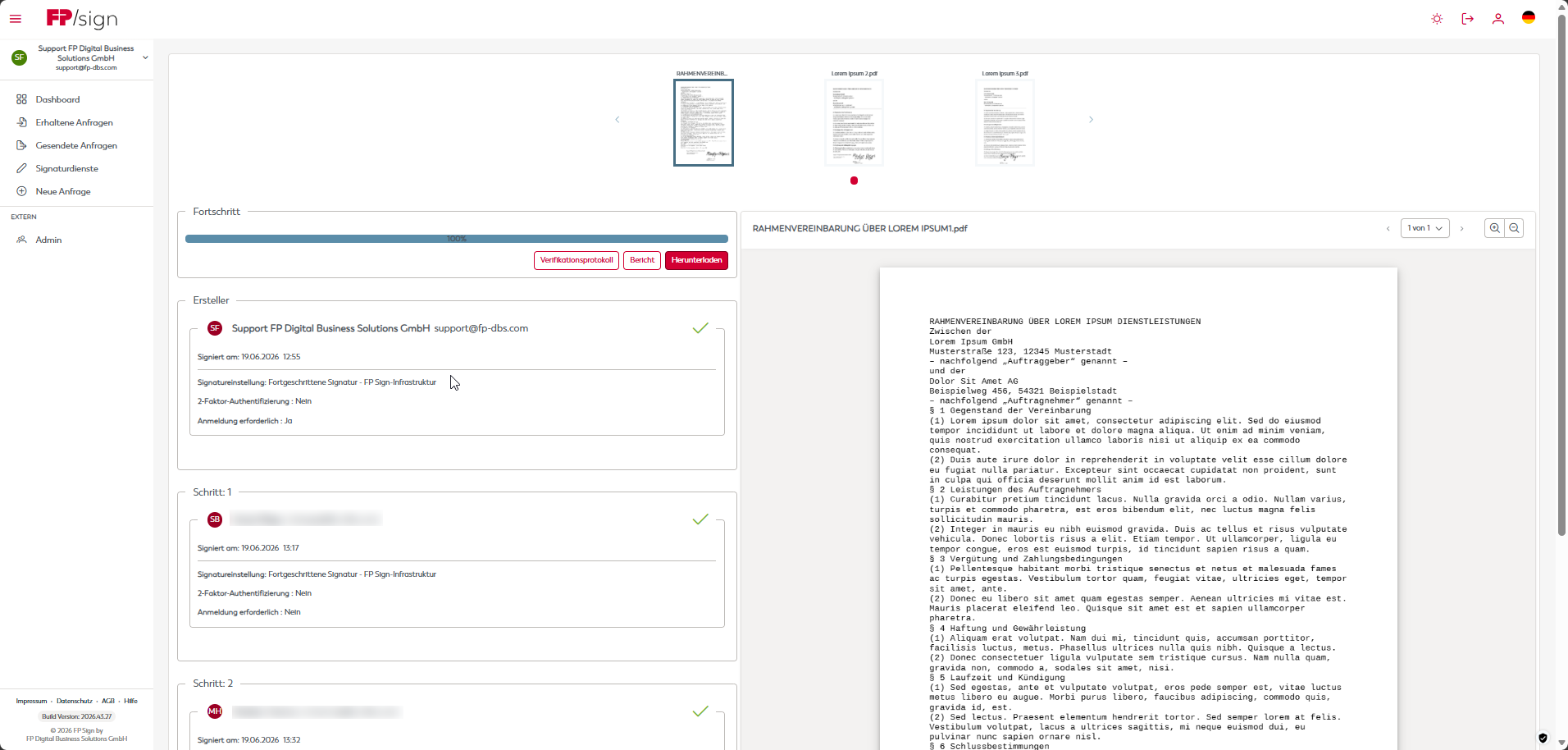
Once all parties have signed, the status changes to 100% (“Completed”). You can then download the completed document and its associated logs.
Click the image and hover over the highlighted areas in the enlarged view.

3.4 Cancel an ongoing request
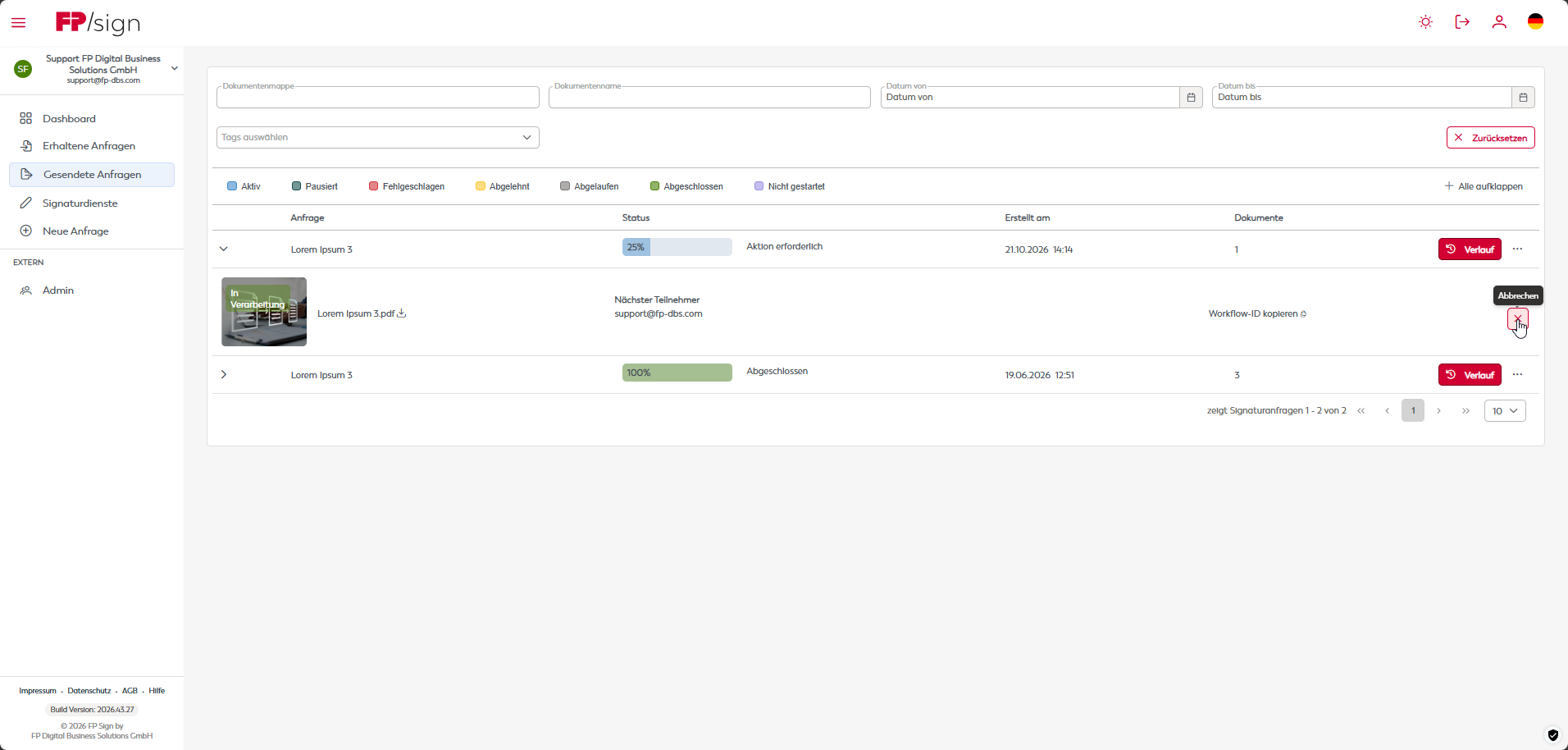
If necessary, you can cancel ongoing requests using the red cancel icon. The illustration shows this action in the expanded request.
Click the image and hover over the highlighted areas in the enlarged view.
4. Signature services – Select a document
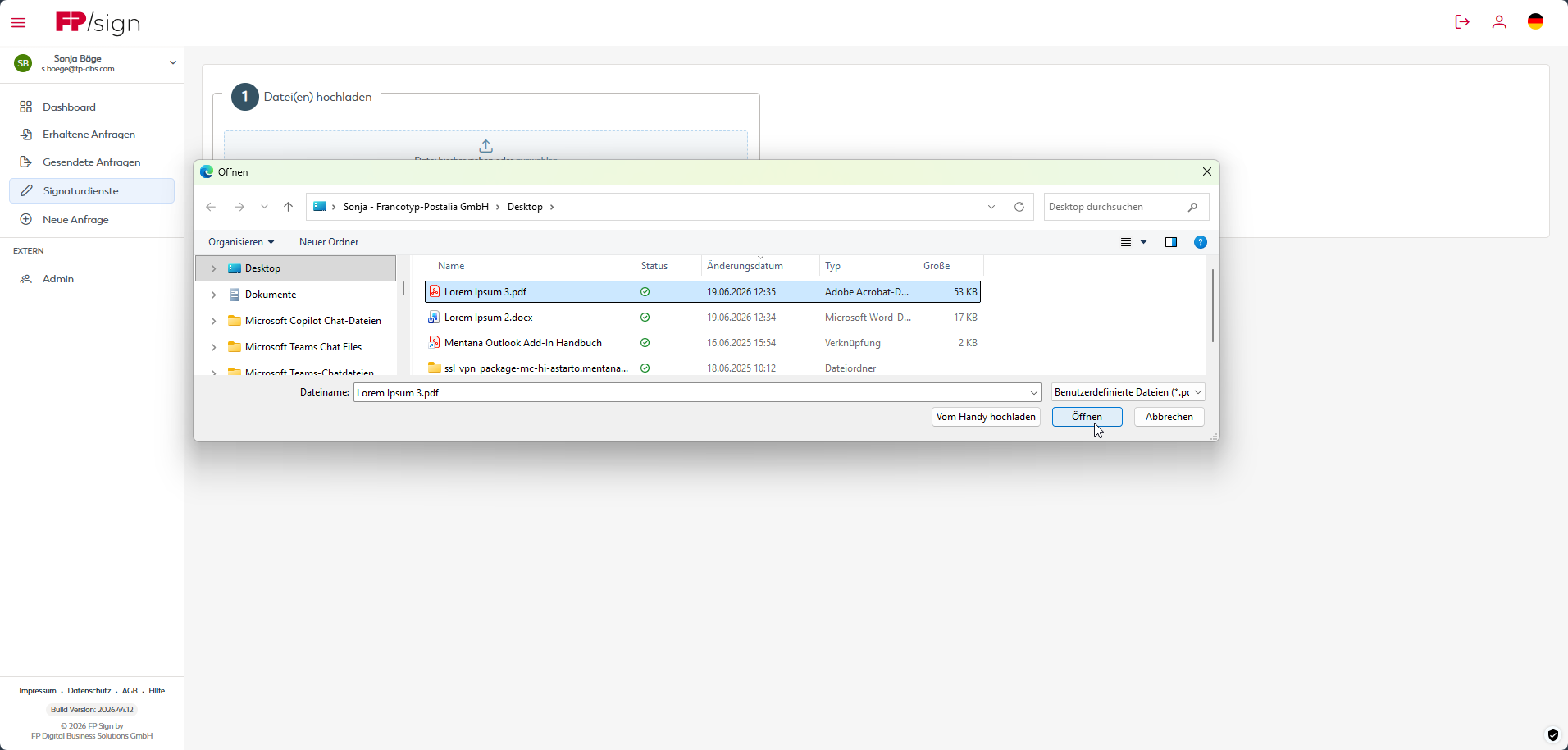
This additional service allows you to sign documents yourself in FP Sign without having to create a complete workflow and send it to other recipients. Open the file selection in the “Upload file(s)” area, select the required document on your computer and confirm with “Open”.
You can verify documents that have already been signed on the dashboard using “Verify signature(s)”.
Click the image and hover over the highlighted areas in the enlarged view.
4.1 Signature services – Sign a document
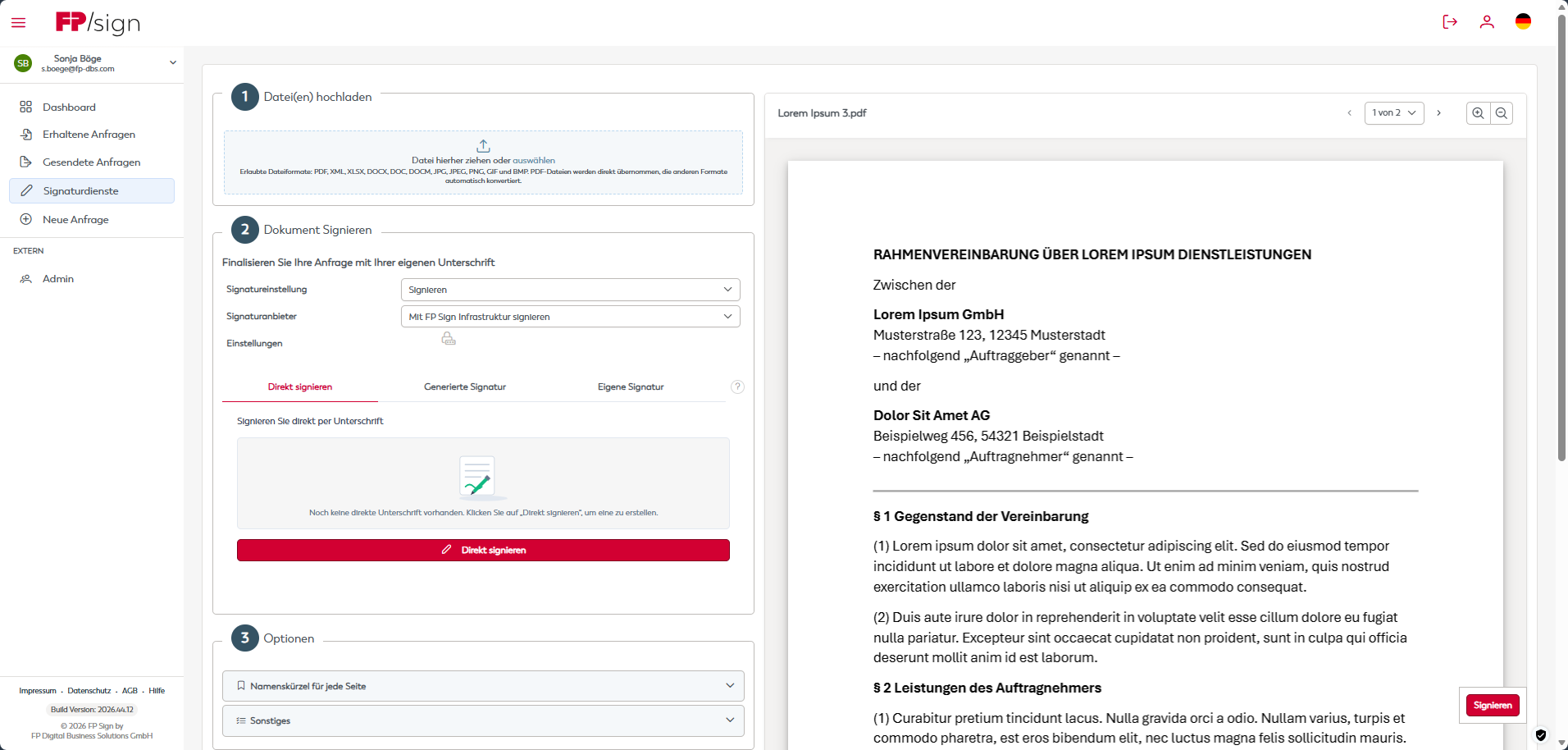
After uploading the file, you will see your document in the preview. In the “Sign document” area, you define the type and appearance of your own signature. Specify the signature level and provider, draw your signature or choose a generated or uploaded signature. Position and confirm the visible signature in the document, check the options and complete the process by clicking “Sign”.
Click the image and hover over the highlighted areas in the enlarged view.
1. Create a new request
The signature request wizard guides you through four steps to create a new signature workflow. The bar at the top always shows which step you are currently on: 1. Documents and attachments, 2. Recipients, 3. Workflow, 4. Sign. This progress indicator appears at the top of every page. Start by uploading your documents.
Click the image and hover over the highlighted areas in the enlarged view.
1.1. Select files
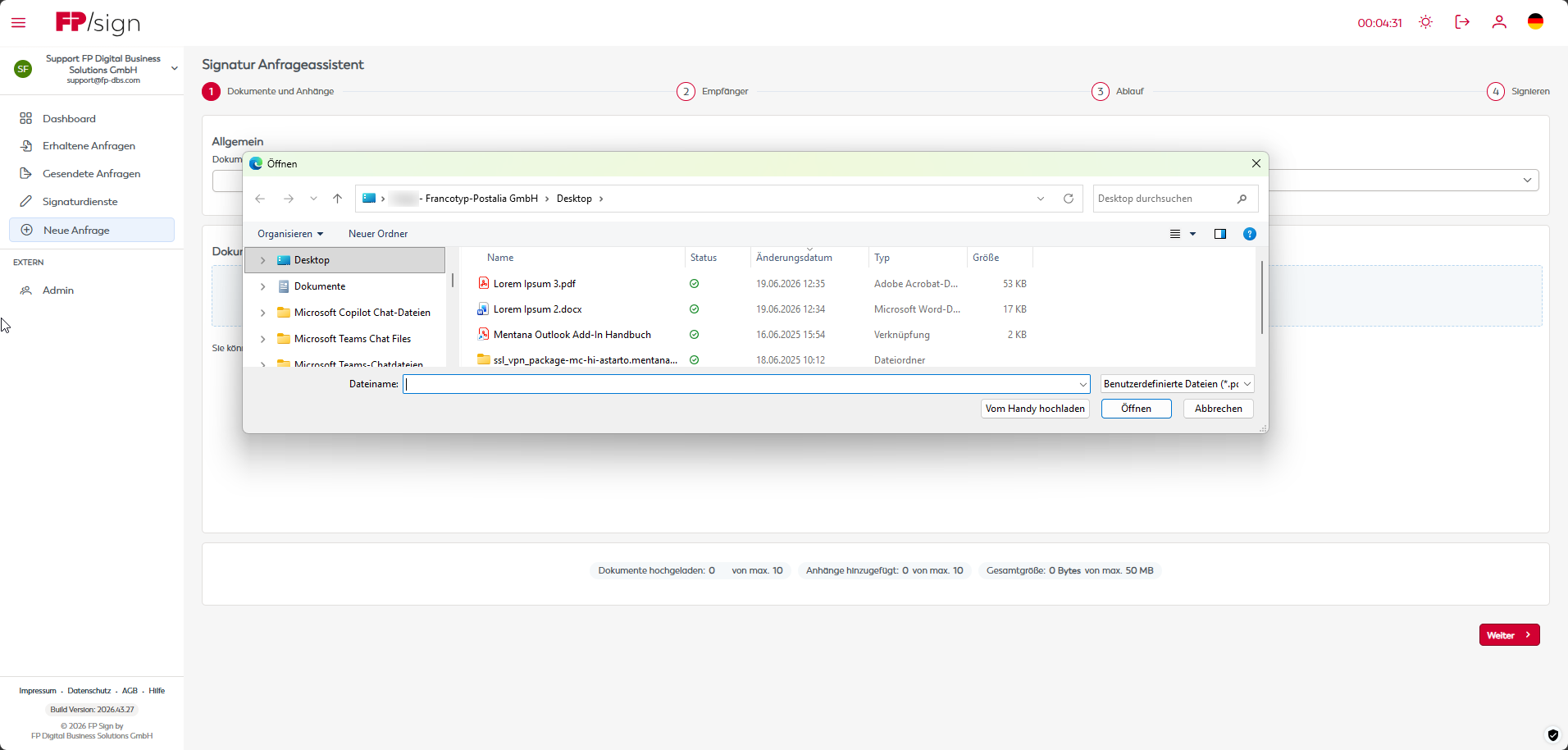
Clicking “+ Select files” opens your operating system’s file manager. Navigate to the location of your documents, select one or more files and confirm your selection with “Open”. The files are then displayed in the document overview.
Click the image and hover over the highlighted areas in the enlarged view.
1.2. Arrange uploaded documents
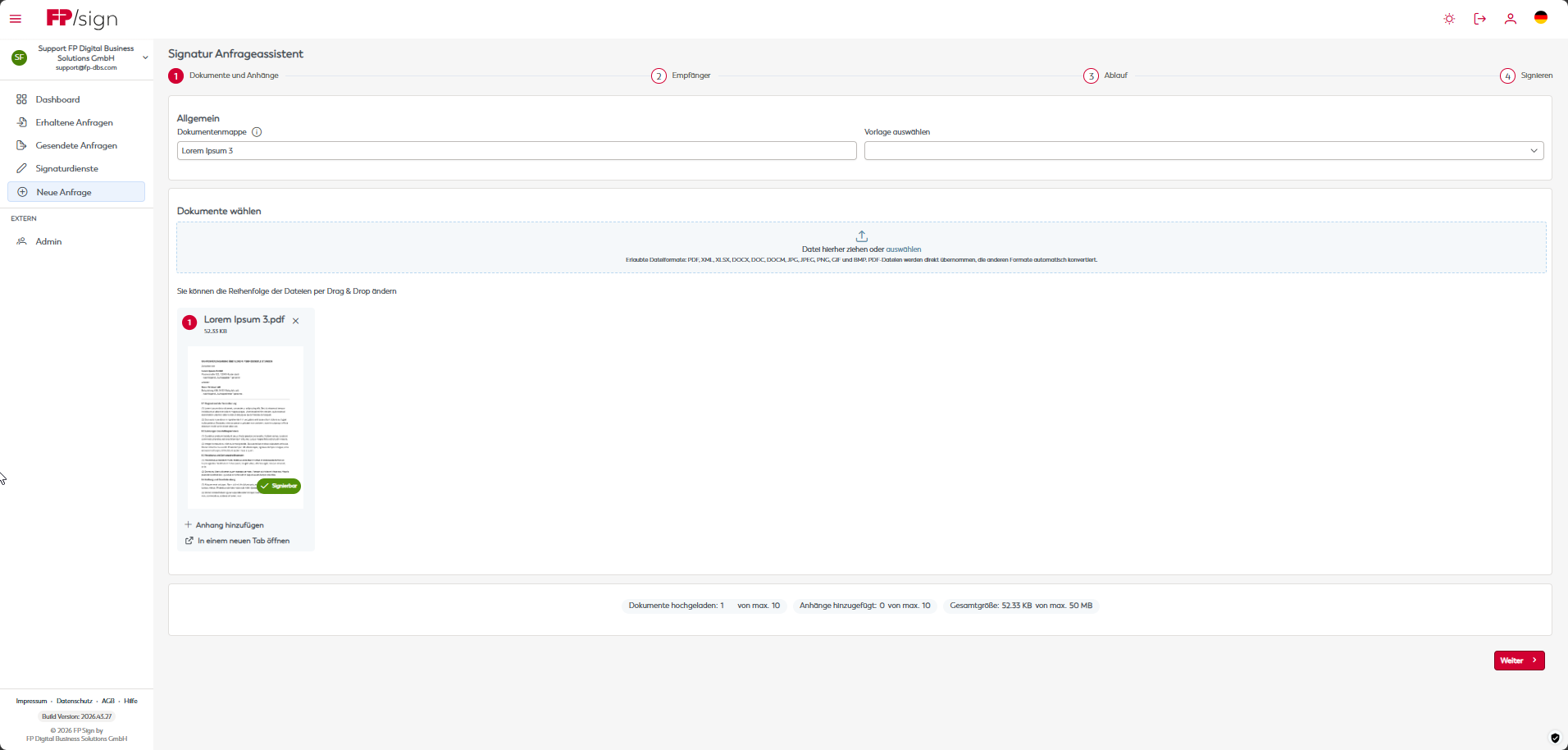
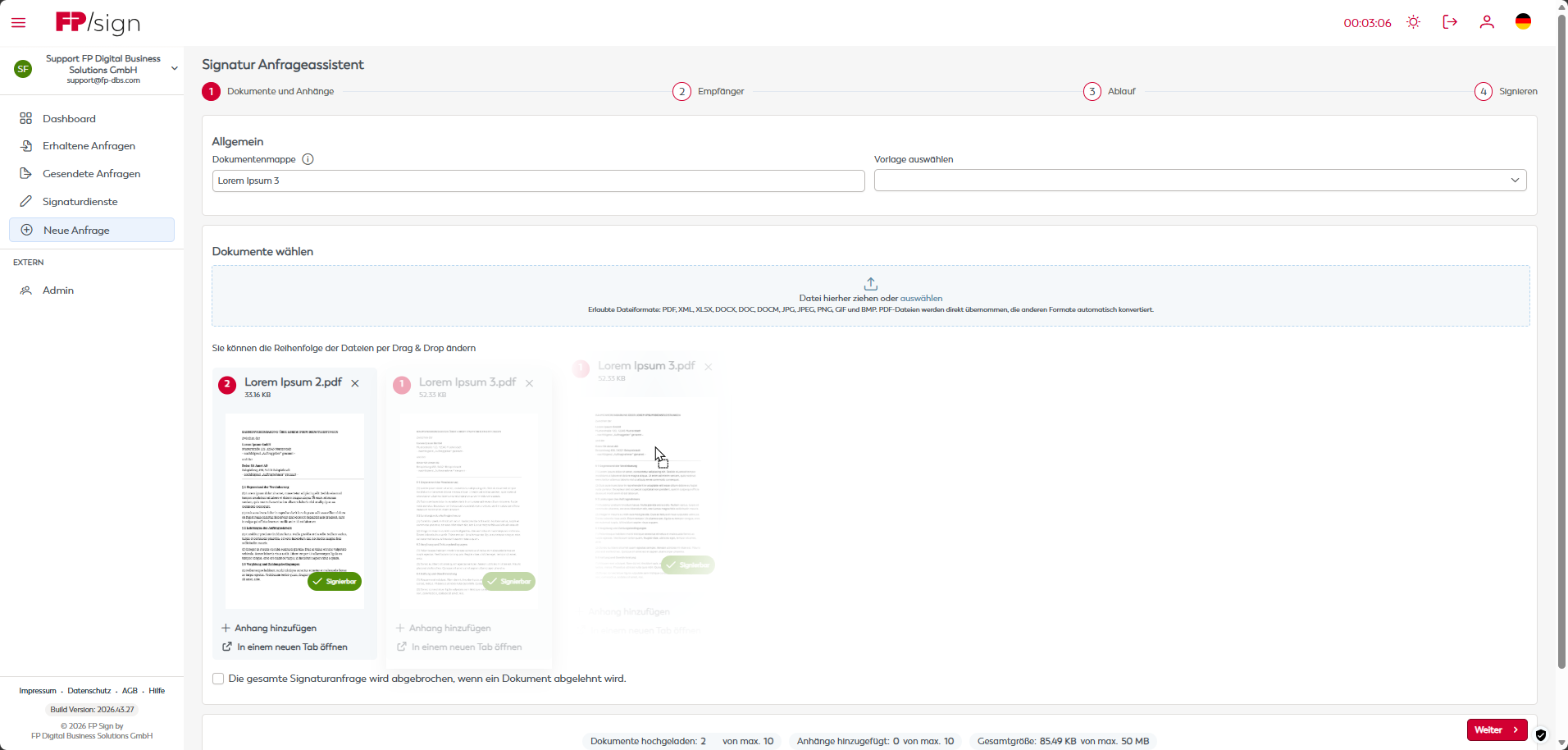
This shows a preview of the documents you have just uploaded for this signature process. By default, the name of the entire document folder (here: “Lorem Ipsum 3”) is taken from the first document uploaded. Arrange the files, add attachments and check the setting for a possible rejection.
Click the image and hover over the highlighted areas in the enlarged view.
2. Select recipients
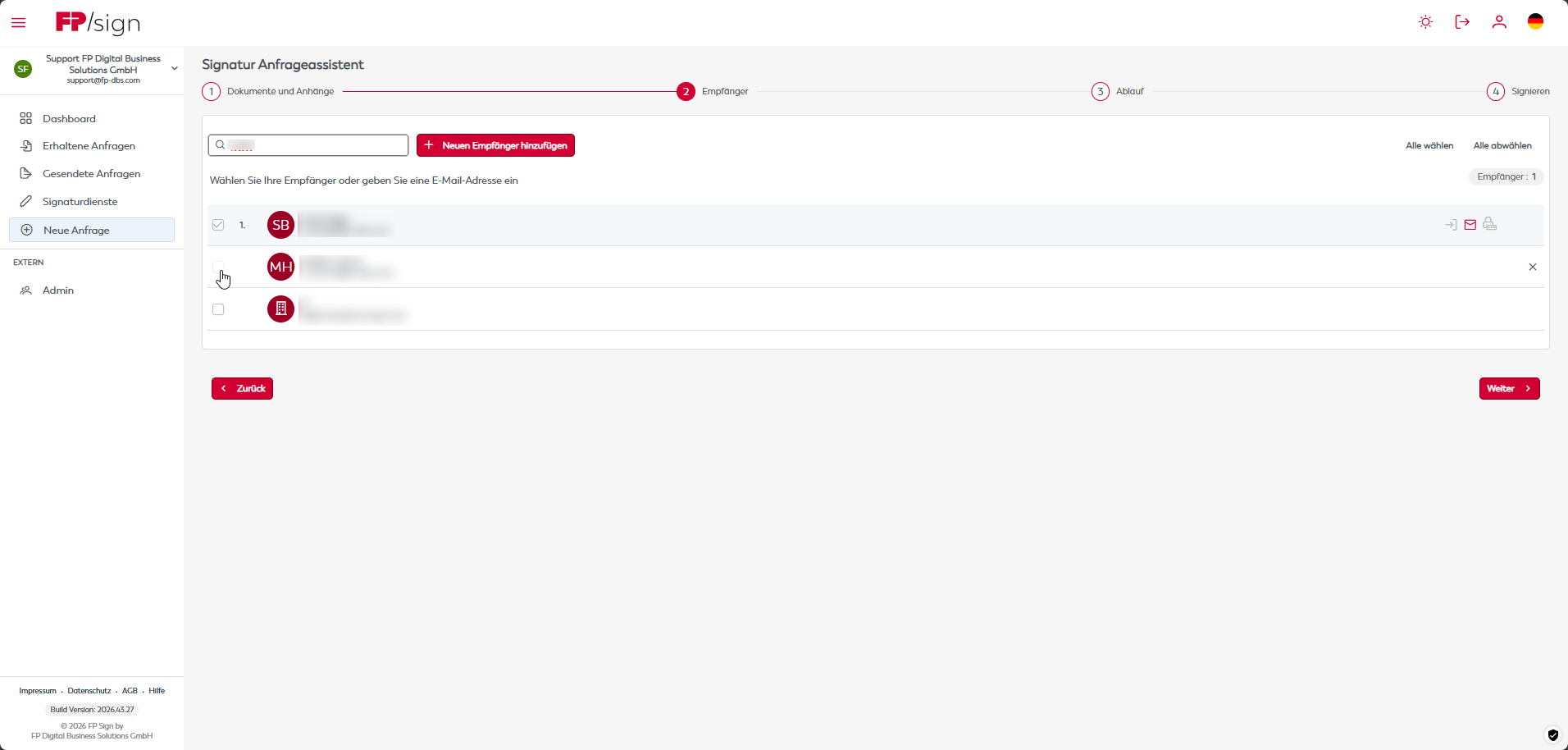
In this step of the wizard, you define who should receive, read or sign the uploaded documents. Select existing contacts from the Magic Address Book or add new recipients by email address.
Click the image and hover over the highlighted areas in the enlarged view.
2.1. Add a new recipient
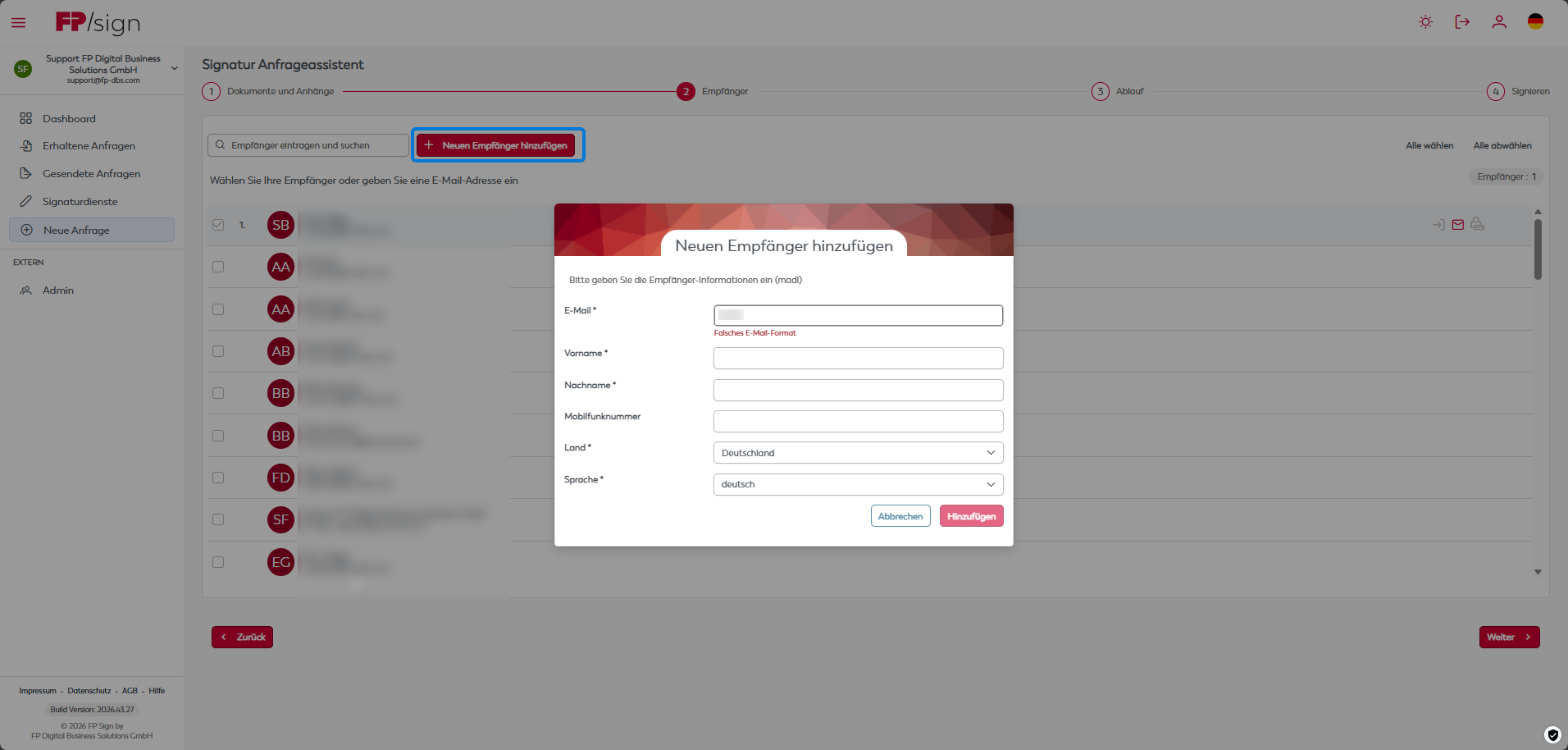
If the recipient you are looking for is not among the suggestions in the Magic Address Book, first search using the first few letters of their email address or name. For a completely new contact, enter the full email address and add them. The illustration shows the “Add new recipient” dialogue.
Click the image and hover over the highlighted areas in the enlarged view.
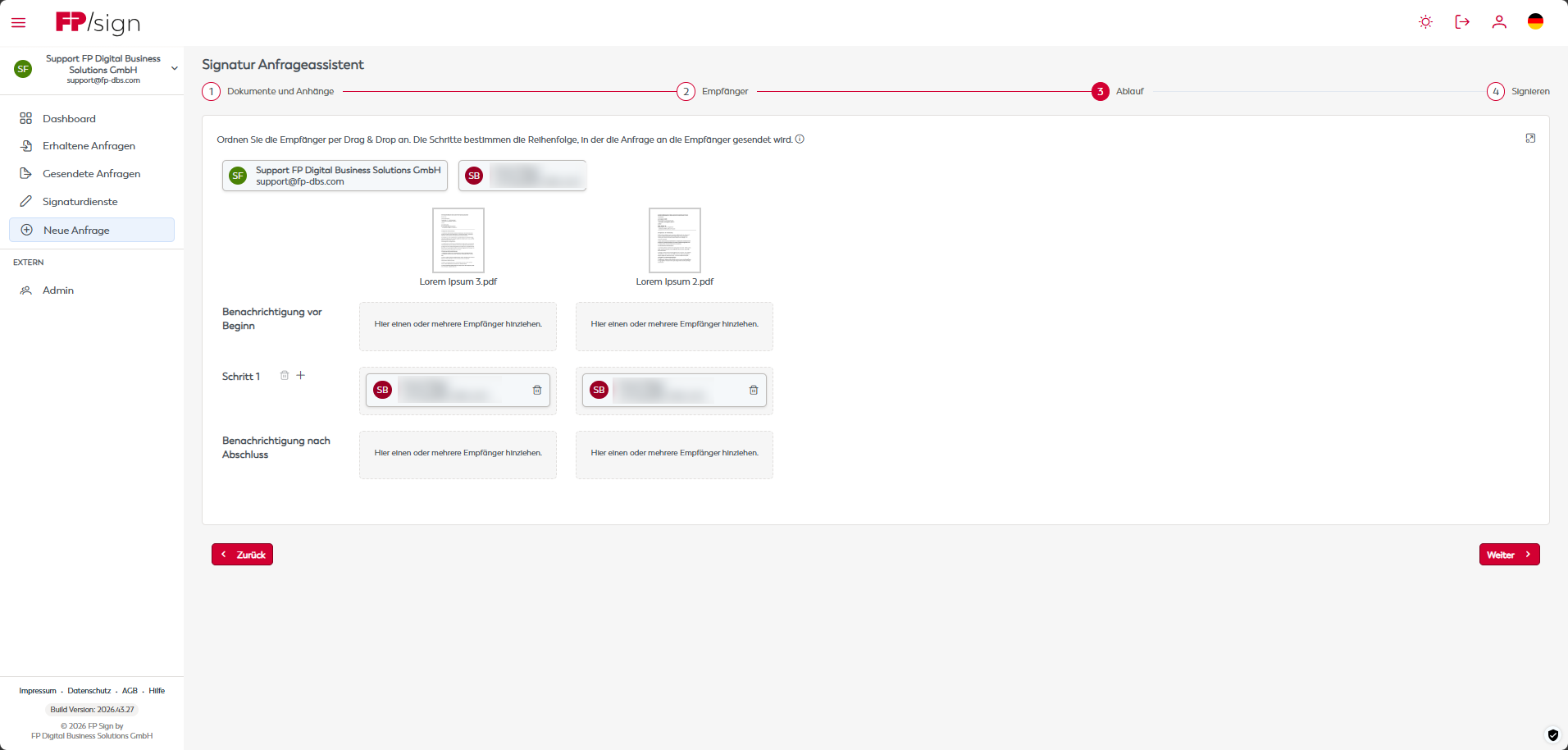
3. Define the workflow
In this step, you can define the order of recipients, specify whether individual participants should receive a notification or add further steps. Assign the recipients to each document in the workflow matrix.
Click the image and hover over the highlighted areas in the enlarged view.
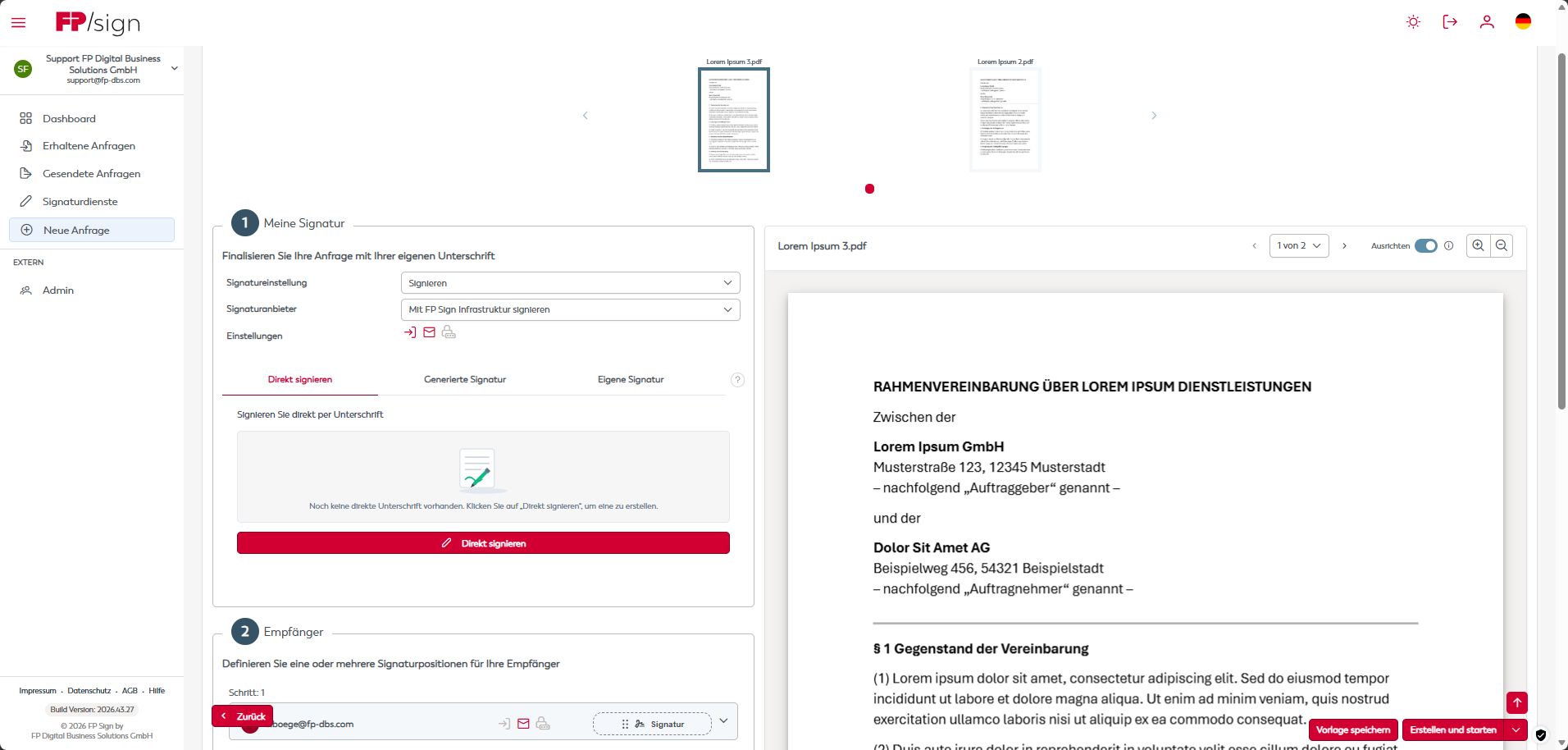
4.1. Sign
In the “Sign” step, work through the areas “1. Sign”, “2. Recipients” and “3. Options” in order. In these areas, you position your own signature, define the signature requirements for individual recipients and configure the global settings of the signature workflow. Select an area or use “Next” to proceed through them in order.
As you defined yourself as an “Active participant” in the previous workflow step, you can now add your own signature directly to the document before the request is sent to the other recipients. Select the document, configure your signature and confirm its position.
Click the image and hover over the highlighted areas in the enlarged view.
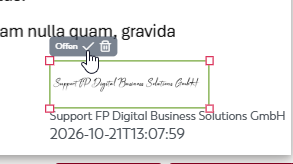
4.1.1. Position and confirm the signature
Drag the signature image to the required position in the document. Then confirm the position using the tick icon. This editing step is only complete once you have confirmed it.
Click the image and hover over the highlighted areas in the enlarged view.
4.2. Recipient settings and signature positions
In this area, you define the individual signature requirements for each recipient. You also prepare the positioning of the signature fields on the document here.
Click the image and hover over the highlighted areas in the enlarged view.
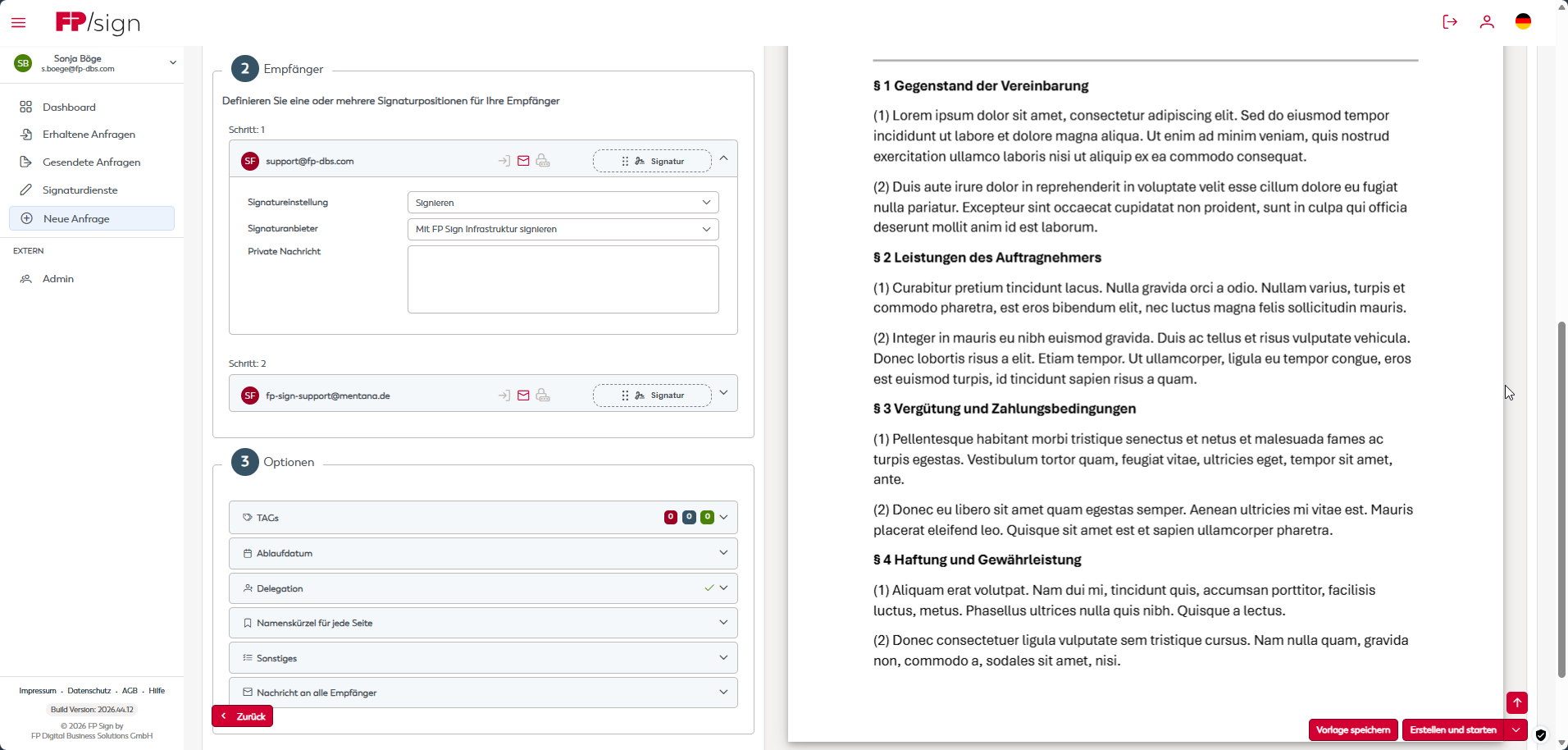
4.3. Options overview
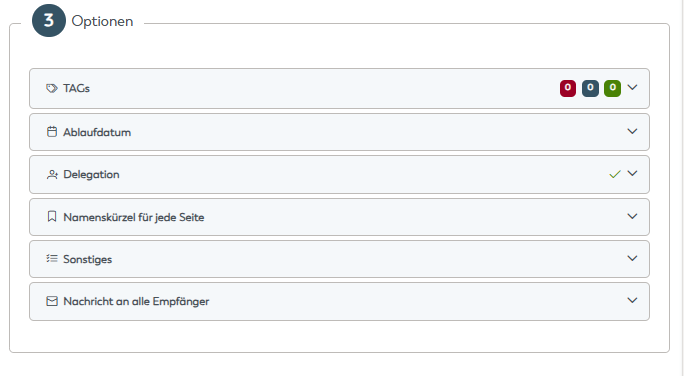
In this area, you define important global settings that apply to the entire signature workflow and everyone involved. Click the corresponding bar to expand each menu item. Open the associated images for detailed explanations.
Click the image and hover over the highlighted areas in the enlarged view.
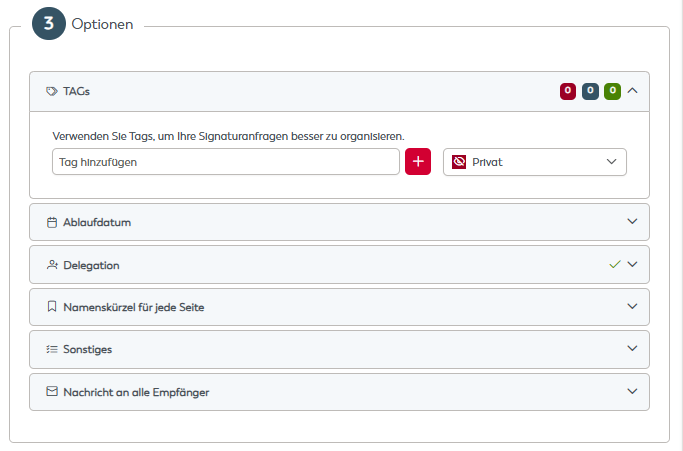
4.3.1. TAGs
Assign keywords to make it easier to filter and find your requests in the outbox later. In the expanded area, you also specify who can see the tag.
Click the image and hover over the highlighted areas in the enlarged view.
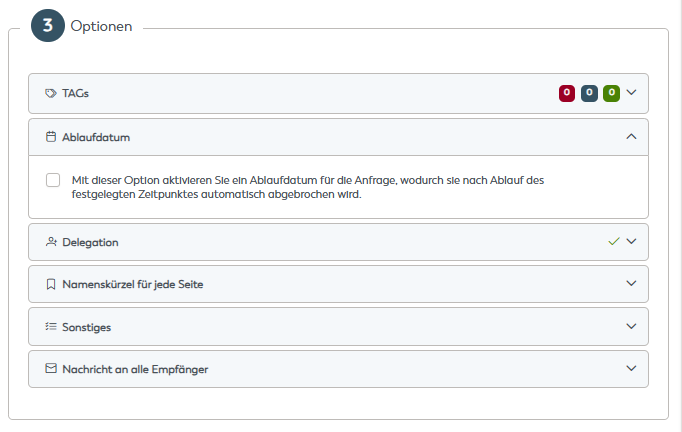
4.3.2. Expiry date
Set an expiry date for the request if required. The illustration shows the option used to enable the date limit.
Click the image and hover over the highlighted areas in the enlarged view.
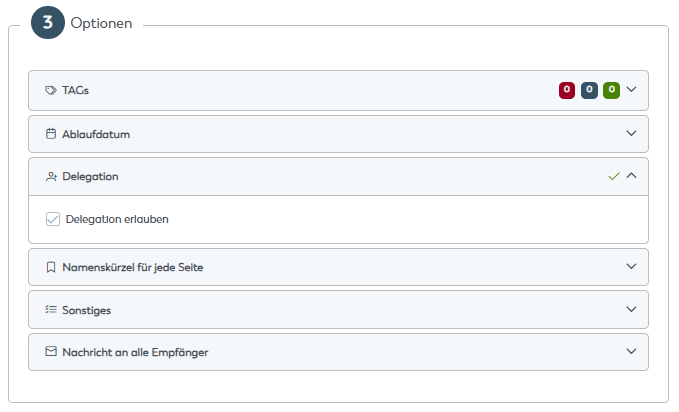
4.3.2. Expiry date
Decide whether recipients may forward the request to sign to another person, for example when someone is acting as a substitute.
Click the image and hover over the highlighted areas in the enlarged view.
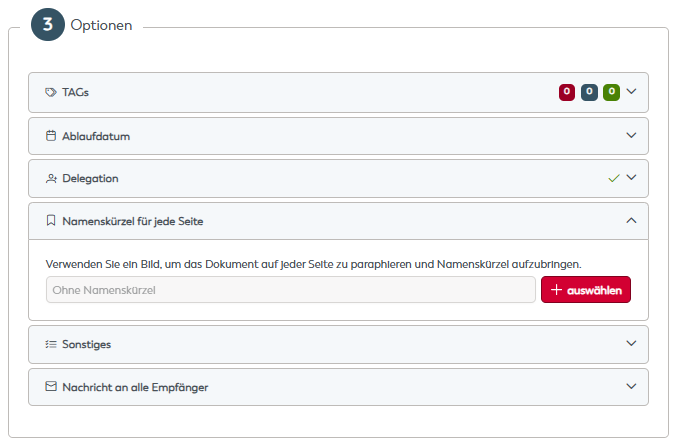
4.3.4. Initials on every page
Use the initialling function if you want your initials to be added automatically to every page of the document.
Click the image and hover over the highlighted areas in the enlarged view.
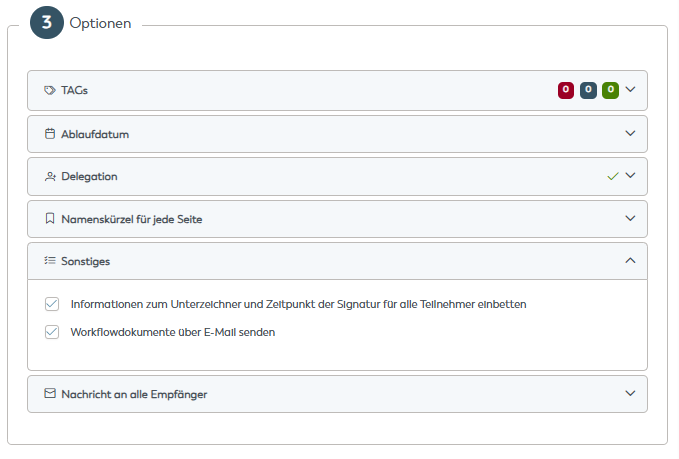
4.3.5. Other settings
Open the “Other settings” area to view and, if necessary, adjust further specific settings for the current signing process.
Click the image and hover over the highlighted areas in the enlarged view.
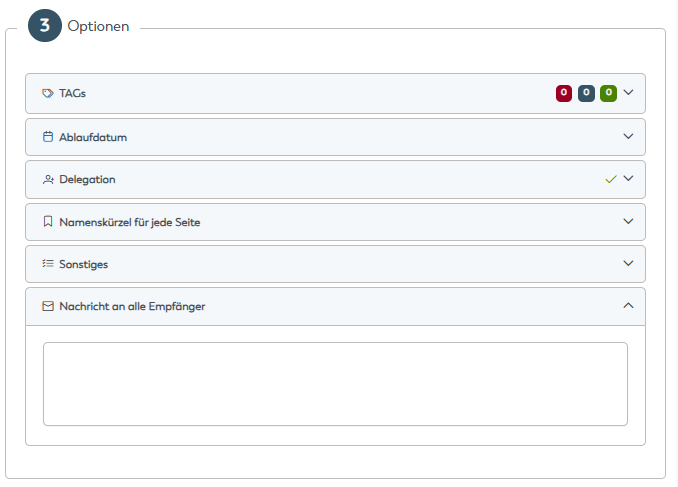
4.3.6. Message to all recipients
If required, leave a message to be displayed in the notification email. This area is for the message to all recipients; a personal message to one person is entered in that person’s recipient settings.
Click the image and hover over the highlighted areas in the enlarged view.
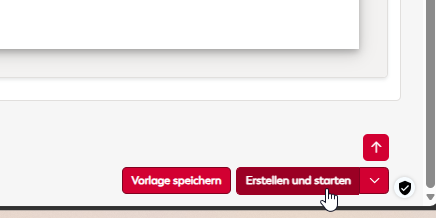
5. Review and start
In this area, you complete the configuration. You can go back one step, create the request only, or create and start it immediately.
Click the image and hover over the highlighted areas in the enlarged view.
Further descriptions for this step
Back
Use “Back” to return to the previous configuration step.
Process completed
Once the request has started, you will find it under the menu item “Sent requests”. There you can monitor progress (who has already signed?), send reminders or download the finished, legally valid document. You can find the details under “Status and history in detail”.
Tip: If you have further questions about user management or signature services, please use the corresponding help areas on your dashboard.